
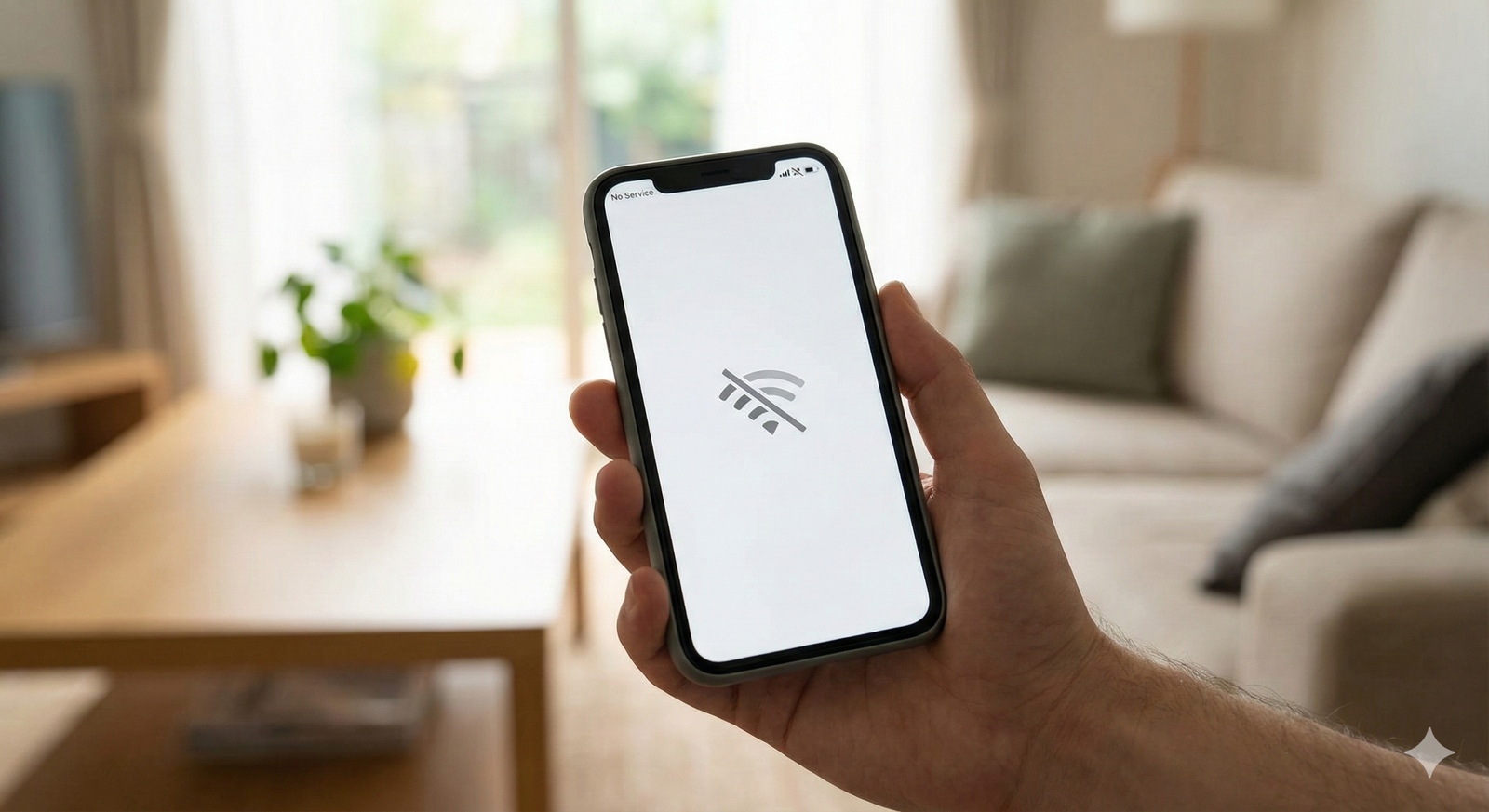
Mobile Data Not Working? Step-by-Step Troubleshooting Guide
Few things are more frustrating than pulling out your phone to check something online, only to discover your mobile data isn’t working. The icons show signal bars, but web pages won’t load, apps refuse to refresh, and you’re effectively cut off from the internet despite being away from Wi-Fi.
Mobile data connection problems occur for various reasons, ranging from simple settings mishaps to carrier network issues. The good news is that most data connection problems can be resolved quickly without technical expertise or a trip to your service provider. This guide walks you through systematic troubleshooting steps to restore your mobile internet connection.
Understanding Mobile Data Connectivity
Mobile data allows your phone to access the internet through your carrier’s cellular network using technologies like 4G LTE or 5G. When functioning properly, this connection happens seamlessly in the background. However, the system involves multiple components—your phone’s hardware, software settings, SIM card, carrier network, and account status—meaning several things can potentially go wrong.
Before assuming a serious hardware problem, it’s worth checking the simple fixes first. Most mobile data issues stem from incorrect settings, temporary software glitches, or minor account problems rather than damaged equipment.
Quick Checks Before Detailed Troubleshooting
Verify Mobile Data Is Enabled
This sounds obvious, but accidentally disabled mobile data is surprisingly common. You might have turned it off to save battery or prevent data usage, then forgotten about it.
For iPhone users: Open Settings > Cellular (or Mobile Data) and ensure the toggle at the top is green/on.
For Android users: Swipe down from the top of your screen to access Quick Settings and check if the mobile data icon is enabled. Alternatively, go to Settings > Network & Internet > Mobile Network and verify mobile data is turned on.
Check Airplane Mode Status
Airplane mode disables all wireless connections, including mobile data. If you enabled it during a flight or meeting, your data won’t work until you turn it off.
Simply swipe down to access Quick Settings and ensure airplane mode is disabled. The airplane icon should not be highlighted or active.
Confirm You Have Signal Coverage
Look at the signal bars on your phone’s status bar. No bars or a “No Service” message indicates you’re outside your carrier’s coverage area or experiencing a network outage. Mobile data requires cellular signal to function.
If you have no signal in an area where you normally do, there might be a temporary network issue or tower maintenance in your area.
Step-by-Step Troubleshooting Methods
Restart Your Phone
A simple restart resolves many temporary software glitches that affect mobile data connectivity. This clears your phone’s memory, resets network connections, and re-establishes communication with your carrier’s towers.
To restart:
- Power off your phone completely
- Wait 30 seconds
- Power it back on
- Wait for the network to connect (look for signal bars)
- Test your mobile data connection
This basic step fixes internet connection issues more often than you might expect.
Toggle Mobile Data Off and On
Sometimes your phone’s mobile data connection gets stuck in an error state. Toggling it off and back on forces a fresh connection attempt.
Access your Quick Settings panel, tap the mobile data icon to disable it, wait 10 seconds, then tap it again to re-enable. Test whether websites or apps now load properly.
Check Data Usage Limits and Restrictions
Many phones include features that limit or disable mobile data after reaching a certain threshold. You might have unknowingly hit a data cap you set previously.
iPhone: Settings > Cellular > check if Low Data Mode is enabled or if you’ve disabled cellular data for specific apps.
Android: Settings > Network & Internet > Data Usage > check for any data limits or warnings that might have triggered restrictions.
Also verify with your carrier that you haven’t exceeded your plan’s data allowance, which could result in throttled speeds or suspended service.
Verify APN Settings
Access Point Name (APN) settings tell your phone how to connect to your carrier’s mobile data network. Incorrect APN settings prevent data connectivity entirely. These settings occasionally reset after software updates or when switching SIM cards.
To check APN settings:
iPhone: Settings > Cellular > Cellular Data Network. If fields appear blank or incorrect, contact your carrier for proper APN configuration details.
Android: Settings > Network & Internet > Mobile Network > Advanced > Access Point Names. Ensure the correct APN is selected (there should be a filled radio button next to it).
If settings look wrong or you’re unsure, search online for your carrier’s official APN settings or contact their support. Some carriers allow automatic APN configuration by texting a specific code.
Reset Network Settings
Network settings resets clear all saved Wi-Fi networks, Bluetooth pairings, VPN configurations, and cellular settings, returning everything to factory defaults. This often resolves persistent data connection problems caused by corrupted settings.
iPhone: Settings > General > Transfer or Reset iPhone > Reset > Reset Network Settings. You’ll need to enter your passcode.
Android: Settings > System > Reset Options > Reset Wi-Fi, Mobile & Bluetooth (exact wording varies by manufacturer).
Important: You’ll need to reconnect to Wi-Fi networks afterward since this erases saved passwords. Write down important Wi-Fi passwords before proceeding.
Remove and Reinsert Your SIM Card
Physical SIM card issues can prevent mobile data from working. Dust, poor contact, or slight misalignment might interrupt the connection between your SIM and phone.
To check your SIM card:
- Power off your phone completely
- Locate the SIM tray (usually on the side of your phone)
- Use the SIM ejector tool or a paperclip to pop out the tray
- Remove the SIM card and inspect it for damage, dirt, or corrosion
- Wipe the gold contacts gently with a clean, dry cloth
- Reinsert the SIM card properly in the tray
- Push the tray back into your phone until it clicks
- Power on your phone and test mobile data
Disable VPN or Proxy Connections
VPN apps and proxy configurations can interfere with mobile data connections. If you use a VPN, try disabling it temporarily to see if your data works without it.
To disable VPN:
iPhone: Settings > VPN & Device Management > toggle off any active VPN.
Android: Settings > Network & Internet > VPN > disconnect any active VPN connections.
Some apps install VPN profiles automatically. Check for unfamiliar VPN configurations and remove them if you didn’t intentionally install them.
Update Carrier Settings
Phone manufacturers and carriers periodically release carrier settings updates that improve network connectivity and fix known issues. Installing these updates can resolve mobile data problems.
iPhone: Settings > General > About. If an update is available, a popup will appear asking you to update.
Android: Carrier settings updates typically install automatically with system updates. Ensure your phone’s software is current through Settings > System > System Update.
Check for Software Updates
Outdated operating systems sometimes contain bugs that affect mobile connectivity. Software updates frequently include fixes for network-related issues.
iPhone: Settings > General > Software Update.
Android: Settings > System > System Update (location varies by manufacturer).
Install any available updates, restart your phone, and test your mobile data connection.
Test with Another Device or SIM Card
Determining whether the problem lies with your phone or your carrier service helps narrow down the cause:
- If possible, insert your SIM card into another phone. If mobile data works there, your original phone has a hardware or settings issue.
- Alternatively, borrow someone else’s SIM card from the same carrier and insert it into your phone. If their SIM provides data connectivity, your original SIM card might be faulty.
This process of elimination identifies whether you need a new SIM card from your carrier or whether your phone requires professional repair.
Checking Account and Carrier Issues
Verify Your Account Status
Contact your carrier to confirm:
- Your account is active and in good standing
- Your bill is paid and service hasn’t been suspended
- You haven’t exceeded plan data limits
- Your plan includes mobile data (some plans are voice-only)
- There are no temporary holds or restrictions on your account
Account-related issues are common causes of suddenly non-functional mobile data, especially around billing cycle dates.
Check for Network Outages
Carrier networks occasionally experience outages due to maintenance, technical problems, or equipment failures. Check your carrier’s website or social media accounts for outage reports in your area.
You can also search online for “[your carrier name] outage” to find real-time reports from other users experiencing similar issues.
Request a New SIM Card
If troubleshooting hasn’t resolved the issue and testing suggests a SIM problem, request a replacement SIM card from your carrier. SIM cards can fail due to age, wear, or manufacturing defects.
Most carriers provide replacement SIM cards free or for a nominal fee. Visit a carrier store or request one through customer service.
When to Seek Professional Help
If you’ve tried all these troubleshooting steps and your mobile data still isn’t working, the issue likely requires professional diagnosis. Consider seeking help if:
- Other phones work fine with your SIM card
- Your phone’s SIM reader appears damaged
- Your phone won’t detect any SIM card
- You recently dropped your phone or exposed it to water
- The problem started after physical damage
Visit an authorized service center or contact your phone manufacturer’s support team. Hardware issues like damaged antennas or faulty radio components require professional repair.
Preventing Future Mobile Data Issues
Once your data connection is restored, consider these preventive measures:
- Avoid repeatedly inserting and removing your SIM card unnecessarily
- Keep your phone’s software updated to prevent bugs
- Monitor your data usage to avoid exceeding plan limits
- Be cautious when installing VPN apps or changing network settings
- Protect your phone from physical damage with a quality case
Conclusion
Mobile data connection problems typically result from simple settings issues, temporary glitches, or account matters rather than serious hardware failures. By systematically working through these troubleshooting steps—starting with basic checks like verifying mobile data is enabled, then progressing to network resets and SIM card inspection—most users can restore their internet connection without professional assistance.
Start with the quickest solutions like restarting your phone and toggling mobile data, then move to more involved steps if needed. If the problem persists after trying everything, contacting your carrier or visiting a service center ensures you get the support necessary to diagnose and resolve the underlying issue. Most mobile data problems are fixable, and with patience and methodical troubleshooting, you’ll be back online soon.