
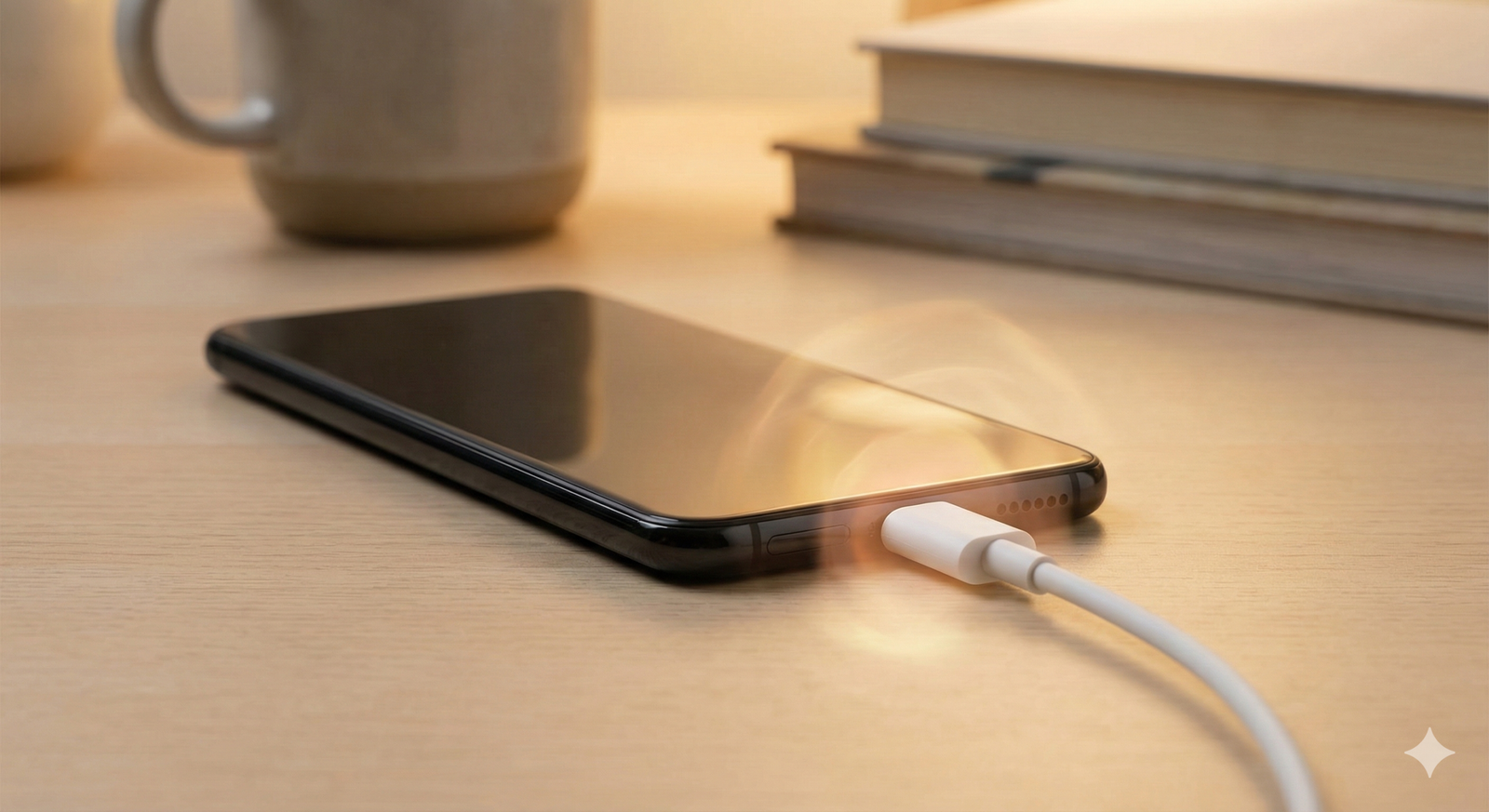
How to Stop Phone Overheating During Charging
You plug in your phone to charge overnight, and when you pick it up in the morning, it feels uncomfortably hot. Or perhaps you notice your device becoming warm to the touch within minutes of connecting the charger. Phone overheating during charging is a common concern that many users experience, and while some warmth is normal, excessive heat can damage your device and potentially pose safety risks.
Understanding why your phone heats up while charging and knowing how to prevent it can protect your device’s longevity and ensure safe operation. This guide examines the causes behind charging-related heat issues and provides straightforward solutions to keep your phone at a safe temperature.
Why Phones Heat Up While Charging
Charging your phone involves converting electrical energy from an outlet into chemical energy stored in the battery. This process naturally generates some heat—it’s basic physics. However, the amount of heat produced depends on several factors, including charging speed, ambient temperature, phone usage during charging, and the quality of your charging accessories.
Modern smartphones charge faster than ever before, with many devices supporting rapid charging technologies that deliver higher power levels. While convenient, this increased power flow generates more heat than standard charging. A phone that feels slightly warm during charging is operating normally, but one that becomes uncomfortably hot or displays temperature warnings requires attention.
Common Causes of Phone Heating Issues While Charging
Using Your Phone While Charging
When you use your phone during charging, you’re essentially asking it to perform two energy-intensive tasks simultaneously. The processor works to run apps, the display consumes power, and the battery tries to charge—all at once. This combination significantly increases heat generation.
Gaming, video streaming, or video calls while charging create the most heat because these activities demand maximum processor performance and keep the screen active at high brightness.
Fast Charging and High-Power Adapters
Fast charging technologies push more electrical current into your battery in shorter timeframes. This rapid energy transfer generates more heat than standard charging speeds. While manufacturers design phones to handle this safely, the temperature increase is noticeably higher.
Using a charger with higher wattage than your phone is designed for can also contribute to overheating, though most modern phones regulate incoming power automatically.
Poor Quality or Damaged Charging Cables
Charging cables and adapters that don’t meet proper safety standards can cause excessive heating. Counterfeit or cheaply made accessories may lack adequate safety mechanisms, deliver inconsistent power, or have internal resistance that generates heat.
Damaged cables with frayed wires or bent connectors create electrical resistance, which converts energy into heat rather than efficiently transferring it to your battery.
Charging in Hot Environments
Ambient temperature plays a significant role in phone temperature during charging. Charging your phone in direct sunlight, inside a hot car, or in a poorly ventilated space compounds the natural heat from charging. Batteries perform optimally between 15°C and 25°C (59°F to 77°F), and temperatures outside this range affect charging efficiency and heat production.
Phone Case Interference
Phone cases, especially thick or insulating materials, trap heat around your device. While cases protect against drops and scratches, they can prevent heat dissipation during charging, causing temperature buildup.
Certain case materials like leather, rubber, or thick silicone retain more heat than thin plastic or fabric cases.
Background Apps and Processes
Apps running in the background during charging keep your processor active, generating additional heat. Automatic backups, app updates, photo syncing, and system maintenance tasks often occur during charging periods, increasing processor load and temperature.
Battery Health Degradation
Older batteries with reduced capacity can generate more heat during charging. As lithium-ion batteries age through repeated charge cycles, their internal resistance increases, causing them to work harder and produce more heat to accept a charge.
Effective Solutions to Reduce Phone Heating
Remove Your Phone Case While Charging
The simplest solution is removing your phone case during charging sessions. This allows heat to dissipate freely from all surfaces of your device. Even a thin case can trap enough heat to raise your phone’s temperature noticeably.
If removing the case isn’t practical, consider switching to a thinner case or one specifically designed with heat dissipation features.
Avoid Using Your Phone While It Charges
Resist the temptation to use your phone during charging, especially for demanding tasks. If you must use it, stick to light activities like reading text or checking simple apps rather than gaming or streaming video.
For overnight charging, this happens naturally since you’re asleep. The phone can focus solely on charging without additional processor demands.
Charge in a Cool, Well-Ventilated Area
Place your phone on a hard, flat surface in a cool room while charging. Avoid:
- Charging on soft surfaces like beds, couches, or pillows that restrict airflow
- Placing your phone in direct sunlight or near heat sources
- Charging inside your car on hot days
- Leaving it in enclosed spaces without ventilation
A wooden desk, glass table, or metal stand provides better heat dissipation than fabric surfaces.
Switch to Standard Charging Speed
If your phone supports fast charging but consistently overheats, consider using a standard charger with lower wattage. While charging takes longer, it generates significantly less heat.
Most phones allow you to disable fast charging in battery settings. On some Android devices, look for options like “Fast Charging” or “Adaptive Charging” in Settings > Battery. iPhones automatically adjust charging speed based on temperature.
Use Original or Certified Charging Accessories
Always use charging cables and adapters from your phone’s manufacturer or certified third-party accessories that meet safety standards. Look for certifications like:
- MFi (Made for iPhone) for Apple devices
- USB-IF certification for USB cables
- Chargers marked with safety certifications from recognized testing organizations
Replace damaged or worn charging cables immediately. Inspect cables regularly for frayed wires, exposed metal, or bent connectors.
Close Unnecessary Apps and Disable Background Activity
Before charging, close apps you’re not using and disable resource-intensive background processes:
- Pause cloud backups and photo syncing
- Disable automatic app updates during charging
- Close resource-heavy apps completely
- Turn off features like Bluetooth, Wi-Fi, and location services if not needed
On Android, you can restrict background activity through Settings > Apps > select app > Battery > Background restriction.
Enable Airplane Mode
Switching to airplane mode during charging reduces heat by disabling all wireless radios—cellular, Wi-Fi, and Bluetooth. This prevents your phone from constantly searching for signals and processing network data, reducing processor activity and heat generation.
This works particularly well for overnight charging when you don’t need connectivity.
Charge When Battery Is Partially Depleted
Charging from very low battery levels (below 10%) to full capacity generates more heat than topping up from 30-40%. The battery works harder to accept a charge when nearly empty and during the final stages approaching 100%.
Consider charging your phone before it drops too low and unplugging around 80-90% rather than always charging to 100%.
Keep Your Software Updated
Software updates frequently include battery management improvements and temperature regulation enhancements. Outdated operating systems may have bugs that cause inefficient charging or excessive processor activity.
Enable automatic updates or manually check for system and app updates regularly through your phone’s settings.
Monitor and Optimize Battery Health
Check your battery’s health status to determine if degradation contributes to heating issues:
- iPhone: Settings > Battery > Battery Health & Charging
- Android: Settings > Battery (location varies by manufacturer)
If battery health shows significant degradation (below 80% capacity), consider professional battery replacement to restore proper charging performance and reduce heat generation.
When Overheating Signals a Serious Problem
While the solutions above address most heating issues, certain warning signs indicate potential hardware problems requiring professional attention:
- Phone displays temperature warnings repeatedly
- Device becomes too hot to hold comfortably
- Battery drains rapidly even after implementing these solutions
- Phone shuts down automatically due to overheating
- Visible battery swelling or screen separation
- Burning smell during charging
If you notice any of these symptoms, stop charging immediately, power off your device, and seek professional repair service. Continuing to charge an overheating phone with hardware issues can cause permanent damage or safety hazards.
Conclusion
Phone overheating during charging usually results from environmental factors, usage habits, or charging accessories rather than serious hardware defects. By removing your phone case during charging, avoiding phone use while plugged in, using quality charging accessories, and ensuring adequate ventilation, you can significantly reduce heat buildup.
Start by implementing the easiest changes—charging in a cool location and removing your case—and observe whether temperatures improve. Most users find that combining several of these practices keeps their phone at comfortable temperatures throughout the charging process. If overheating persists despite these efforts, checking battery health or consulting a professional ensures your device remains safe and functional for years to come.