
How to Free Up Storage Space on Android Phones Safely
The dreaded “Storage Full” notification appears on your screen, preventing you from taking photos, downloading apps, or installing important updates. Your Android phone has run out of space, and suddenly everything feels limited and frustrating. If your device constantly warns about low storage, you’re facing one of the most common smartphone issues today.
Android phones accumulate digital clutter over time—cached files, duplicate photos, forgotten downloads, and app data pile up until storage capacity maxes out. The good news is that you can reclaim significant storage space without deleting important files or risking data loss. This guide explains safe, effective methods to clear phone storage and keep your device running smoothly.
Understanding Android Storage
Android devices divide storage into several categories: apps and their associated data, photos and videos, audio files, downloads, cached data, and system files. Each category contributes to your total storage usage, though some grow larger than others depending on how you use your phone.
Before deleting anything, it’s helpful to understand what’s consuming the most space. Android includes built-in storage analysis tools that show exactly where your gigabytes are going, allowing you to make informed decisions about what to remove.
Check Your Storage Usage First
Start by examining your current storage situation to identify the biggest space consumers.
To view storage details:
- Open Settings
- Tap Storage (or Device Care > Storage on Samsung devices)
- Review the breakdown showing how much space each category uses
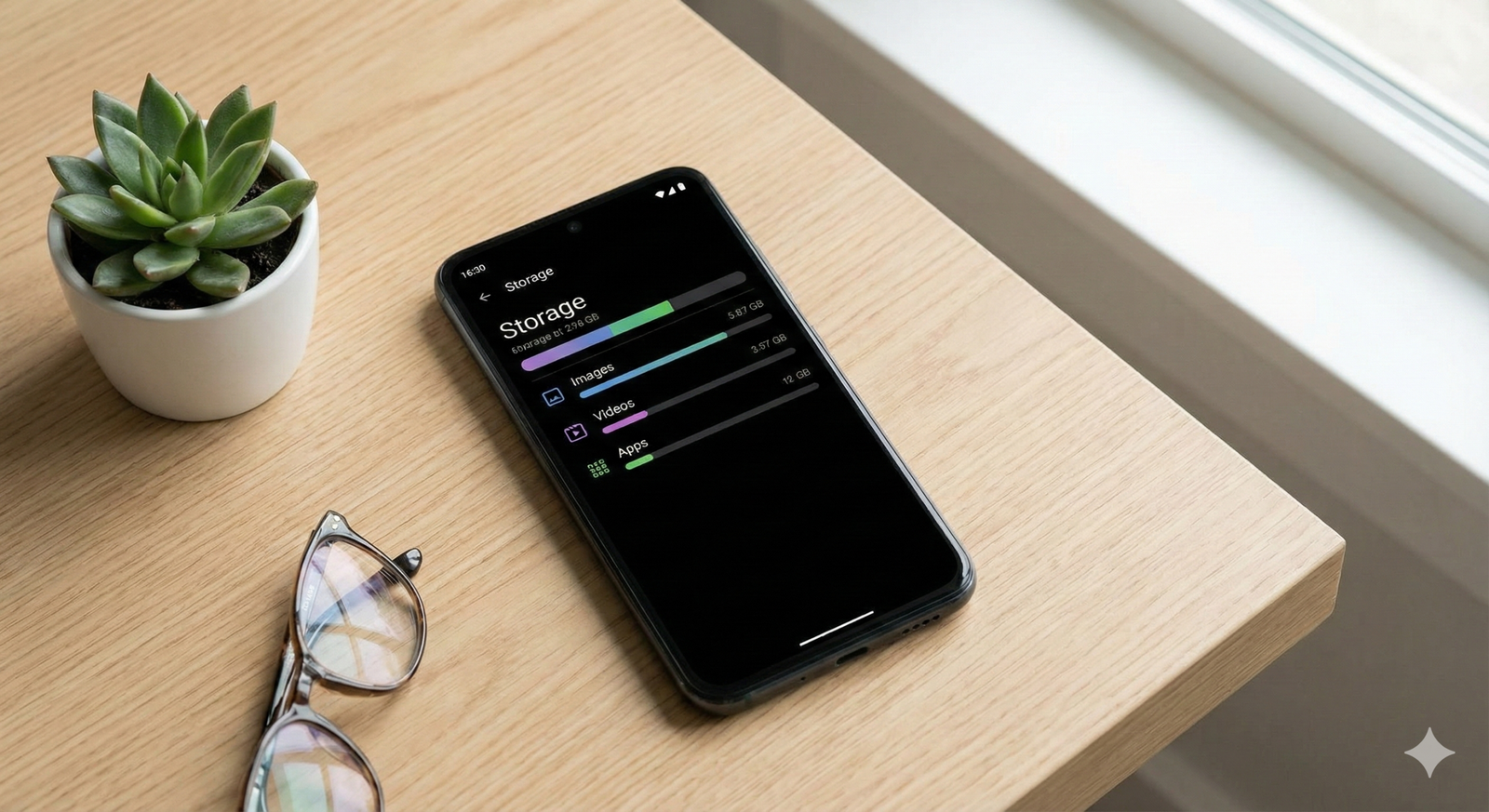
This screen displays categories like Apps, Images, Videos, Audio, Documents, and Other. Tap any category to see specific items within it. This analysis reveals whether your storage problem stems from too many apps, an overflowing photo library, or accumulated cached data.
Safe Methods to Free Up Storage on Android
Clear App Cache and Data
Apps store temporary files called cache to load content faster and improve performance. Over time, these cached files accumulate and consume substantial storage without providing ongoing value. Clearing cache is safe and won’t delete your personal data, account logins, or app settings.
To clear cache for individual apps:
- Go to Settings > Apps
- Select an app that uses significant storage
- Tap Storage
- Tap Clear Cache
Repeat this process for apps you use frequently, especially social media apps, web browsers, streaming services, and messaging apps that cache large amounts of media.
To clear all app cache at once (available on some Android versions):
- Settings > Storage
- Tap Cached Data or Junk Files
- Confirm deletion
Note that clearing an app’s data (different from cache) resets the app completely, requiring you to log in again and reconfigure settings. Only clear data if you’re comfortable starting fresh with that app.
Delete Downloaded Files
The Downloads folder often contains forgotten files—PDFs you viewed once, images you saved temporarily, installation files for apps already installed, and documents you no longer need.
To review and delete downloads:
- Open the Files app (or My Files on Samsung devices)
- Navigate to Downloads
- Review files and delete anything unnecessary
- Long-press to select multiple files
- Tap the delete icon
Be careful to review items before deleting. Some downloads might contain important documents or receipts you still need.
Remove Unused Apps
Apps you no longer use waste storage space. Many people install apps for one-time use or trial periods, then forget about them. A thorough app audit can free up several gigabytes.
To uninstall apps:
- Go to Settings > Apps
- Sort by size to identify the largest apps
- Select apps you don’t use
- Tap Uninstall
Consider whether you’ve used each app in the past month. If not, uninstalling it makes sense. You can always reinstall apps later if needed, as your purchase history and downloads remain tied to your Google account.
Gaming apps typically consume the most storage, often requiring 1-5GB each. If you’ve finished a game or no longer play it, uninstalling creates significant space.
Manage Photos and Videos
Photos and videos usually consume the largest portion of storage on most Android phones. A single minute of 4K video can occupy 350MB or more, while high-resolution photos average 3-5MB each. Thousands of photos quickly fill available space.
Backup and delete strategy:
Use Google Photos or another cloud service to back up your media before deleting locally stored copies:
- Install Google Photos if not already present
- Open the app and enable backup in Settings
- Wait for all photos and videos to upload (ensure you’re on Wi-Fi)
- Once backup completes, open Google Photos
- Tap your profile picture > Free up space
- The app identifies already-backed-up items and safely removes local copies
This method preserves access to your photos through the cloud while clearing storage on your device. You can view and download photos anytime you have an internet connection.
Manual deletion:
Review your gallery and delete:
- Blurry or duplicate photos
- Screenshots you no longer need
- Old memes and images shared in messages
- Videos you’ve already watched
Open your gallery app, select multiple items by long-pressing, then tap delete. Empty the Recently Deleted or Trash folder afterward to permanently remove files.
Clear WhatsApp and Messaging App Data
Messaging apps like WhatsApp, Telegram, and Facebook Messenger accumulate enormous amounts of media—photos, videos, voice messages, and documents shared in conversations. These files often sit unused but continue consuming storage.
For WhatsApp:
- Open WhatsApp > Settings > Storage and Data > Manage Storage
- Review which chats use the most space
- Select conversations and delete large files, forwarded media, or old content
- Enable settings to prevent automatic media downloads
For other messaging apps:
- Check Settings > Apps > [Messaging App] > Storage
- Clear cache (safe) or selectively delete media from within the app
Consider changing settings to prevent automatic saving of received media, requiring manual downloads only for files you actually want to keep.
Use Files by Google for Smart Cleanup
Files by Google is a free app that identifies junk files, duplicate photos, unused apps, and large files consuming storage. It provides recommendations for safe deletion.
To use Files by Google:
- Install Files by Google from the Play Store if not pre-installed
- Open the app and tap Clean
- Review suggestions like:
- Junk files (temporary files safe to delete)
- Duplicate files
- Memes and screenshots
- Large files you might not need
- Select items to delete and confirm
The app makes storage management simpler by automatically identifying low-value files you can safely remove.
Move Files to External Storage
If your Android phone supports microSD cards, moving files to external storage provides additional capacity without deleting anything.
To move files to SD card:
- Insert a microSD card into your phone
- Open Settings > Storage
- Select Internal Storage
- Choose file categories to move
- Tap Move to SD Card or Transfer
You can also set your camera to save new photos and videos directly to the SD card through camera settings, preventing future storage issues.
Delete Offline Content from Streaming Apps
Streaming services like Netflix, Spotify, YouTube, and Amazon Prime Video allow offline downloads for viewing without internet. These downloads consume substantial storage and often get forgotten.
To remove offline content:
Netflix: Open app > Downloads > Edit > Select items > Delete
Spotify: Settings > Storage > Delete cache and Remove all offline songs
YouTube: Library > Downloads > Select videos > Delete
Review each streaming app you use and remove any offline content you’ve already watched or listened to.
Clear Browser Data
Web browsers store cached pages, cookies, browsing history, and downloaded files. Over months of use, this data accumulates to hundreds of megabytes or more.
To clear browser data in Chrome:
- Open Chrome
- Tap the three dots (menu) > Settings
- Select Privacy and Security > Clear Browsing Data
- Choose cached images and files, cookies, and browsing history
- Select time range (All Time for maximum cleanup)
- Tap Clear Data
This won’t delete saved passwords or bookmarks, but you may need to log into websites again.
Factory Reset as Last Resort
If your phone remains critically low on storage after trying everything else, a factory reset returns your device to its original state. This drastic measure deletes everything, so only consider it if other methods fail.
Before factory reset:
- Back up all important data to Google Drive or computer
- Note which apps you need to reinstall
- Save photos and videos to cloud storage
- Export contacts and messages if needed
To factory reset:
- Settings > System > Reset Options > Erase All Data (Factory Reset)
- Confirm and wait for the process to complete
- Set up your phone fresh, reinstalling only necessary apps
Factory resets eliminate years of accumulated clutter but require significant time to restore your phone to a usable state.
Preventing Storage Issues Going Forward
Once you’ve freed up space, maintain that breathing room with these ongoing practices:
Review Storage Monthly
Set a monthly reminder to check storage usage and clean up accumulated files. Regular maintenance prevents the storage-full crisis from recurring.
Enable Automatic Cloud Backup
Configure Google Photos or your preferred cloud service to automatically back up new photos and videos. Enable the option to remove local copies of backed-up media.
Limit App Installations
Before installing new apps, consider whether you genuinely need them. Avoid installing multiple apps that serve similar purposes.
Adjust Camera Settings
If you rarely print photos or view them on large screens, consider reducing your camera’s resolution from maximum quality to high quality. Smaller file sizes add up to significant storage savings over time without noticeable quality loss on phone screens.
Monitor Automatic Downloads
Review settings in messaging apps, email clients, and browsers to prevent automatic downloads of attachments and media you don’t request.
What Not to Delete
While cleaning storage, avoid deleting:
- System files or folders you don’t recognize
- Apps labeled “System” or with Android icons
- Files in folders named “Android,” “System,” or “.data”
- App data for apps you actively use (unless you want to reset them)
Deleting system files can cause stability issues or prevent your phone from functioning properly. Stick to user-generated content, cached data, and files you recognize as safe to remove.
Conclusion
Running out of storage on your Android phone doesn’t mean you need to delete precious photos or essential apps. By systematically clearing cached data, removing unused apps, backing up photos to the cloud, and managing messaging app media, you can reclaim multiple gigabytes safely and effectively.
Start with the quickest wins—clearing app cache and deleting obvious junk like old downloads and screenshots—then progress to more involved steps like photo backup and app uninstallation. Most users find they can free up 30-50% of their storage by following these methods, restoring their phone’s performance and eliminating those frustrating storage warnings. Regular maintenance keeps storage issues from returning, ensuring your Android device remains responsive and ready for whatever you need.