
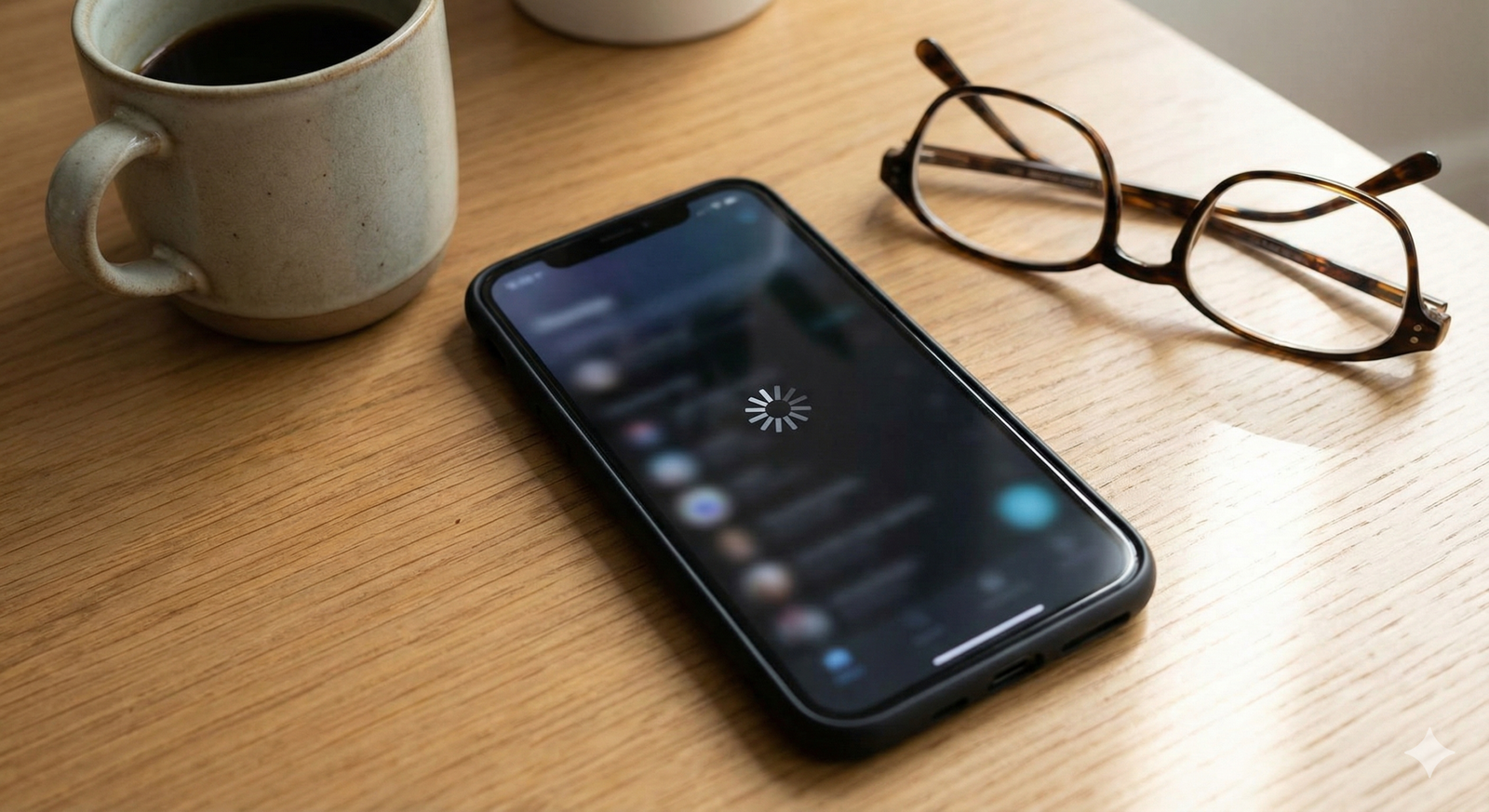
Why Is My Phone Slow? Simple Ways to Improve Performance
You tap an app icon and wait. And wait. Your phone hesitates before switching between screens, stutters while scrolling through social media, or takes several seconds to open the keyboard. A phone running slow transforms everyday tasks into exercises in frustration, making even simple activities feel like a chore.
Smartphone performance degradation happens gradually—so slowly that you might not notice until one day you realize your once-snappy device now feels sluggish. The encouraging news is that most performance issues stem from fixable software problems rather than aging hardware. This guide explains why phones slow down and provides practical methods to restore responsive performance.
Understanding Why Phones Lose Speed Over Time
Smartphones don’t automatically become slower simply because they’re older. Instead, several factors accumulate over months and years of use, gradually affecting performance. Your phone’s processor hasn’t changed, but the demands placed on it have increased through software updates, accumulated data, and evolving app requirements.
Think of it like a desk that starts clean and organized but gradually becomes cluttered with papers, files, and miscellaneous items. The desk itself is fine, but finding what you need takes longer because of the clutter. Similarly, your phone’s performance suffers not from the hardware aging, but from accumulated digital clutter and inefficient resource management.
Common Causes of Phone Lagging Issues
Insufficient Storage Space
When your phone’s storage fills up, performance suffers noticeably. Smartphones need available storage space for temporary files, app caches, and system operations. When storage drops below 10-15% of total capacity, the system struggles to manage files efficiently, causing slowdowns across all functions.
Photos, videos, downloaded files, and app data gradually consume storage. A phone that started with plenty of free space years ago might now be nearly full.
Too Many Background Apps
Apps don’t always close when you think they do. Many continue running background processes—refreshing content, checking for updates, monitoring location, or maintaining active connections. Each background app consumes processor resources and memory, leaving less available for the tasks you’re actively trying to complete.
Social media apps, email clients, and messaging services are particularly aggressive about maintaining background presence.
Outdated Software
Counterintuitively, sometimes newer software versions run slower on older hardware, especially if developers optimize their apps for current-generation devices. However, outdated software also causes problems by missing performance improvements and bug fixes included in updates.
Running very old operating system versions or apps can leave you with unoptimized code that wastes system resources.
Accumulated Cache and Temporary Files
Apps create cache files to speed up loading times by storing frequently accessed data locally. Over time, these caches grow large and ironically slow things down rather than help. Temporary files from installations, downloads, and app usage accumulate without being automatically cleaned.
Battery Degradation and Power Management
Aging batteries don’t just hold less charge—they also affect performance. When batteries degrade significantly, phones automatically throttle processor speed to prevent unexpected shutdowns. This power management feature, while protecting your device, results in noticeably slower performance.
Animations and Visual Effects
Visual effects make your interface look polished but require processing power to render. Transition animations, live wallpapers, and widgets constantly running on your home screen all consume resources that could otherwise be dedicated to app performance.
Malware or Problematic Apps
Occasionally, poorly designed apps or malicious software cause severe performance problems by consuming excessive resources, running unnecessary background processes, or interfering with system operations.
Simple Solutions to Speed Up Your Smartphone
Free Up Storage Space
Clearing storage is the single most effective way to improve phone performance. Target these areas:
Delete unused apps: Review your app list and remove anything you haven’t used in months. Hold app icons and select uninstall or delete.
Clear photos and videos: Back up media to cloud storage or a computer, then delete local copies. Photos and videos typically consume the most storage space.
Remove downloads: Check your Downloads folder for old files, PDFs, and documents you no longer need.
Clear app caches: On Android, go to Settings > Storage > Cached Data and clear it. On iPhone, you may need to delete and reinstall specific apps to clear their caches.
Aim to keep at least 20% of your total storage free for optimal performance.
Restart Your Phone Regularly
Regular restarts clear memory, stop unnecessary background processes, and refresh system resources. Many people never turn off their phones, allowing minor issues to accumulate.
Restart your phone at least once per week. This simple habit prevents many performance problems before they become noticeable.
Close Unused Apps
While modern smartphones manage memory efficiently, manually closing apps you’re not using can improve performance, especially on devices with limited RAM.
iPhone: Swipe up from the bottom and pause in the middle of the screen, then swipe up on app cards to close them.
Android: Tap the square or three-line navigation button to view recent apps, then swipe them away or tap “Close All.”
Focus on closing resource-intensive apps like games, video streaming services, and navigation apps when you’re finished using them.
Disable or Remove Unnecessary Apps
Some apps you can’t delete come pre-installed on your phone. While you can’t remove them completely, you can disable them to prevent them from running and consuming resources.
Android: Settings > Apps > select the app > Disable (for pre-installed apps) or Uninstall (for apps you downloaded).
iPhone: While you can’t disable most system apps, you can remove unused Apple apps from your home screen and restrict their background activity in Settings > General > Background App Refresh.
Limit Background App Activity
Restricting which apps can run in the background significantly improves performance by reducing processor and memory usage.
iPhone: Settings > General > Background App Refresh > select which apps can refresh in the background or turn it off completely.
Android: Settings > Apps > select an app > Battery > Background Restriction. Enable restrictions for apps that don’t need constant background access.
Focus on limiting background activity for social media, news, and entertainment apps while allowing it for essential services like messaging and email if needed.
Reduce Animations and Visual Effects
Disabling or reducing animations makes your interface feel more responsive immediately.
iPhone: Settings > Accessibility > Motion > Reduce Motion. This removes many transition effects and parallax features.
Android: Enable Developer Options by going to Settings > About Phone and tapping “Build Number” seven times. Then go to Settings > System > Developer Options and adjust animation scales:
- Window animation scale: 0.5x or off
- Transition animation scale: 0.5x or off
- Animator duration scale: 0.5x or off
Update Your Software
Keep your operating system and apps current. Updates often include performance optimizations and bug fixes that improve speed.
iPhone: Settings > General > Software Update.
Android: Settings > System > System Update.
Enable automatic app updates through your app store to ensure applications stay current without manual intervention.
Clear Browser Cache and Data
If web browsing feels particularly slow, clearing your browser’s cache and data can help.
Safari (iPhone): Settings > Safari > Clear History and Website Data.
Chrome: Open Chrome > tap three dots > History > Clear Browsing Data > select time range and data types.
Do this monthly to prevent accumulated browser data from affecting performance.
Disable Live Wallpapers and Widgets
Live wallpapers and home screen widgets constantly consume resources to display animated backgrounds or real-time information.
Switch to a static wallpaper and remove widgets you don’t regularly use. Keep your home screen simple with only essential apps visible.
Check for Malware or Problematic Apps
If your phone suddenly became slow after installing a specific app, that app might be the culprit. Recent installations that coincide with performance problems deserve scrutiny.
Uninstall recently added apps one at a time and observe whether performance improves. If you suspect malware, consider using reputable mobile security software to scan your device.
Factory Reset as a Last Resort
If nothing else works, a factory reset returns your phone to its original state, eliminating all accumulated software issues. This is the most drastic solution but often the most effective for severely slow devices.
Before resetting:
- Back up all important data, photos, and files
- Note down your important passwords and account information
- Ensure you know your Google or Apple account credentials to reactivate your device
To factory reset:
iPhone: Settings > General > Transfer or Reset iPhone > Erase All Content and Settings.
Android: Settings > System > Reset Options > Erase All Data (Factory Reset).
After resetting, set up your phone as new rather than restoring from a backup, which might reintroduce the problems you’re trying to fix. Reinstall only the apps you actually use.
Performance Optimization for Older Phones
If your phone is several years old, additional considerations apply:
Consider battery replacement: If your battery health is below 80%, replacing it can restore performance throttled by power management features.
Avoid the latest software updates: Newer OS versions sometimes run poorly on older hardware. If an update significantly slows your phone, you might need to live with the current version or consider upgrading your device.
Use lighter app alternatives: Switch to lite versions of apps (Facebook Lite, Messenger Lite, etc.) designed for lower-end hardware. These versions consume fewer resources while maintaining core functionality.
Limit multitasking: Older phones with less RAM struggle when running multiple apps simultaneously. Focus on one task at a time and close apps completely when finished.
Maintaining Good Performance Long-Term
Once you’ve improved your phone’s speed, maintain it with these habits:
- Restart your phone weekly
- Review and delete unused apps monthly
- Clear storage regularly before it fills completely
- Update software promptly when updates become available
- Avoid installing unnecessary apps impulsively
- Monitor which apps drain resources most and limit their use
Conclusion
A phone running slow usually signals manageable software issues rather than inevitable hardware decline. By freeing storage space, managing background apps, reducing visual effects, and keeping software updated, you can restore much of your device’s original responsiveness without spending money on repairs or replacements.
Start with the simplest fixes—restarting your phone and clearing storage—and work toward more involved solutions only if needed. Most users notice significant improvement after just a few basic optimizations. If performance remains poor after trying everything, your phone might genuinely be reaching the end of its useful life, at which point upgrading to a newer device becomes the practical solution. However, before making that decision, give these performance improvements a fair try—you might be surprised how much life remains in your current phone.